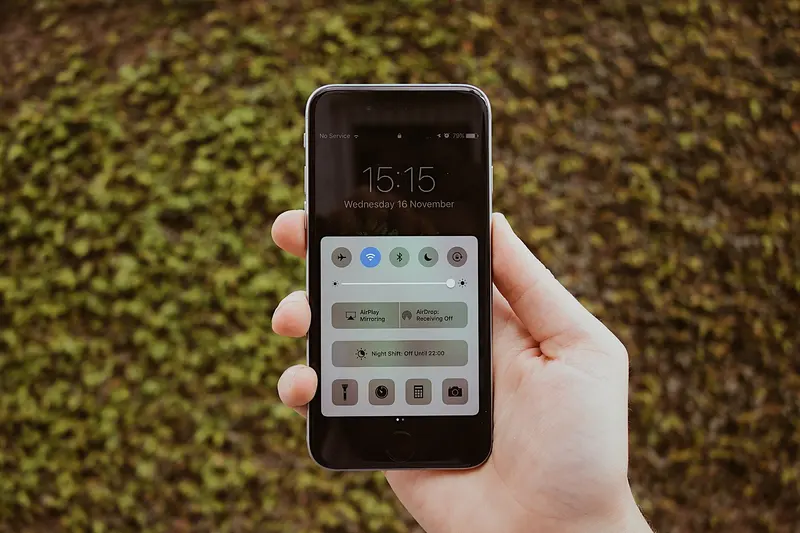
The most common reason ETA can’t start a journey is simple: the browser hasn’t been allowed to share your location with the site. The journey screen then shows “GPS: not allowed”. The fix is always in your browser’s or phone’s settings — ETA itself can’t switch it on for you, and that’s deliberate.
This article explains how location permission works for websites, then where to look on Android and iPhone. Menus change between versions, so treat the steps as a guide and check your browser’s own help if something looks different.
Why websites have to ask
MDN’s Geolocation guide explains the rules every browser follows:
- You’re asked first. For privacy reasons, a site can only get your location after you’ve granted permission through the browser’s prompt — unless you’ve already allowed or blocked that site.
- Secure pages only. Location is available only on secure (HTTPS) pages. That’s one reason ETA only runs over https.
- How long a “yes” lasts depends on the browser. MDN says a granted permission may last for a time, for a session, or permanently. So you might be asked again after a while, or never.
MDN also makes the point that location data may reveal information the device owner doesn’t want to share. The permission prompt is there to protect you, which is why we’d never try to get round it.
The two places a “no” can come from
On a phone there are usually two separate switches:
- The site permission in the browser — whether this website may ask the browser for your location.
- The phone’s permission for the browser app — whether Chrome, Safari or another browser may use location at all.
If either one is off, ETA won’t get a position. If you tapped “Block” or “Don’t allow” once by mistake, the browser will usually remember and stop asking — which looks to you like ETA isn’t asking any more.
Chrome on Android
Google’s Chrome help says Chrome asks you each time a site wants your location, by default. To change it:
- For the site you’re on: tap the three-dot menu, then Site controls, and look for Location.
- For any site: three-dot menu › Settings › Site settings › Location. Sites are listed under Allowed and Not allowed; tap the menu next to a site to change it.
Google’s help also notes that when you share location with a site, Chrome uses Google Location Services to estimate where you are before passing it to the site.
Also check that location is switched on for the phone itself, in Android’s own settings.
Safari on iPhone
On iPhone, Apple’s guide puts the master switch in Settings › Privacy & Security › Location Services, which must be on. Further down that screen, each app has its own choice:
- Never — no access.
- Ask Next Time Or When I Share — you choose Allow While Using App, Allow Once or Don’t Allow when asked.
- While Using the App — only while the app, or one of its features, is on screen.
- Always — including in the background.
Look for your browser in that list and make sure it isn’t set to Never. Apple also explains Precise Location: since iOS 14 you can turn it off for an app, which then gets only your approximate location. For an alarm that’s meant to wake you before your stop, approximate location isn’t good enough — if ETA’s accuracy reading looks very large, check that Precise Location is on for your browser. Our post on how your phone knows where you are explains what the accuracy figure means.
When Safari asks whether eta.me.uk may use your location, choose Allow. If you blocked it earlier, the website settings menu next to the address (the “aA” button) is the place to look.
If it still doesn’t work
- Reload the page after changing a setting; some browsers only check permission when the page loads.
- Make sure you’re on https://eta.me.uk, not an old bookmark or a copy of the page.
- Private or incognito tabs may forget permissions when closed.
- Indoors, a fix can take a while. “GPS: no fix yet” is different from “not allowed” — it means permission is fine but the phone hasn’t found you yet. Step outside or near a window.
What we do with it
Once allowed, your location stays on your phone for the wake-me alarm. For “tell my people” journeys, the phone sends our server “send the alert now” with its estimate of the minutes left — your position is only sent if you switch the optional live link on. The how it works page and our privacy notice set out exactly what is sent and when.
 · 3 min readCycling home in the dark: lights, reflectors and the Highway CodeFrom late autumn, many cycle commutes end after sunset. What the Highway Code says you must have on your bike at night, what it recommends you wear…
 · 3 min readPassenger Assist: booking help with a train journeyIf you need help getting on or off a train, finding your way through a station or with luggage, Passenger Assist can arrange it. How to book, how…
One setting, checked once, and the journey screen should show your GPS accuracy instead of “not allowed”.