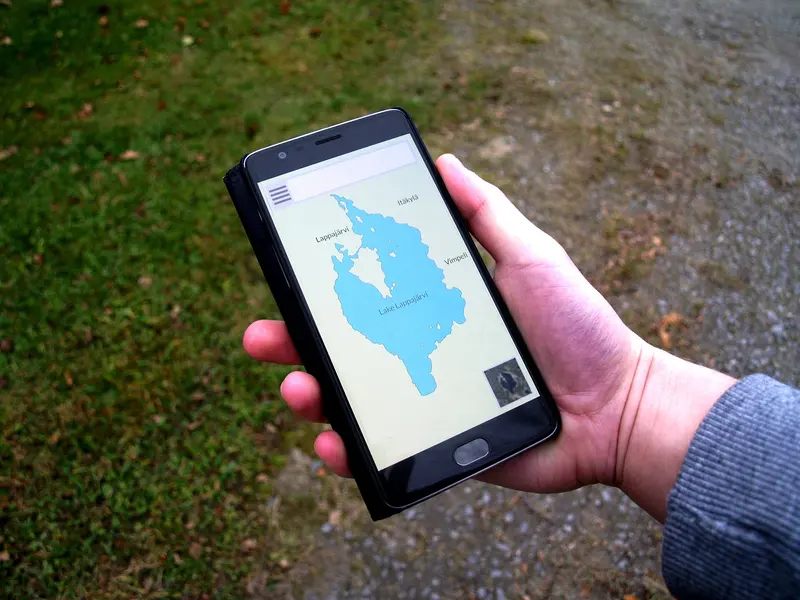
ETA’s journey screen shows a small status chip such as “GPS: ±20 m”. That number is worth understanding, because it explains most of the odd moments you might notice on a journey: a dot that jumps across the road, a distance that briefly goes up when you’re walking towards home, or an alert that comes a little earlier or later than you expected.
Where the position comes from
A web page doesn’t talk to your phone’s GPS chip directly. It asks the browser, and the browser asks the phone. The W3C Geolocation specification — the standard every browser follows — lists the kinds of information a device might use: satellite positioning (GPS), the IP address of your connection, nearby Wi-Fi and Bluetooth devices, and the mobile masts your phone can hear. The specification is deliberately “agnostic” about which of these is used, and says plainly that no guarantee is given that the answer is your device’s actual location.
The phone makers describe the same mix from their side:
- Apple says Location Services on iPhone uses GPS and Bluetooth where available, along with crowd-sourced Wi-Fi hotspot and mobile mast locations, to work out your approximate location.
- Google says Android’s Location Accuracy setting combines GPS, Wi-Fi and mobile network signals with the phone’s sensors (accelerometer, barometer and gyroscope) to find your location faster and more accurately, especially indoors or near big buildings. With it switched off, only GPS and the sensors are used, and location may be less available or accurate.
In practice that means outdoors with a clear view of the sky you usually get a tight GPS fix, while indoors, in a station or between tall buildings the phone leans more on Wi-Fi and masts, which are rougher.
What the ± number actually means
Every reading comes with an accuracy figure. MDN’s reference and the specification define it the same way: a radius in metres, at a 68% confidence level. Put simply, if your phone says ±20 m, there’s roughly a two-in-three chance you’re within 20 metres of the dot — and a real chance you’re further away.
So a reading of ±15 m on an open street is good. A reading of ±500 m inside a building is a rough guess. ETA shows you the figure so you can judge it, and it ignores very poor readings and waits for a better one rather than raising an alert on a wild guess.
Why the distance can jump
- You moved from outdoors to indoors (into a station, a shop, a tunnel entrance) and the phone switched from GPS to a rougher method.
- Tall buildings and cuttings reflect satellite signals, which can pull the dot sideways.
- Underground, there may be nothing at all. If the phone can’t get a position, nothing updates. That’s why our commuter tips say not to rely on ETA on underground lines.
- The page was hidden. Browsers only send position updates to pages that are on screen — the specification says updates are “exclusively for fully-active visible documents”. If the screen locks, updates stop until you come back. More on that in why the screen has to stay open.
Settings worth checking before a journey
ETA needs location permission in your browser, and your phone’s own location setting switched on. If either is off, the journey screen can’t see you moving.
- Is location on? On iPhone it’s Settings › Privacy & Security › Location Services (Apple’s steps). On Android it’s in Settings › Location (Google’s steps).
- Is your browser allowed? On iPhone, the browser needs at least “While Using the App”. Apple describes that option as allowing access only while the app is visible on screen — which matches how ETA works anyway.
- Precise Location (iPhone). If Precise Location is off for your browser, apps only get your approximate area. That’s fine for a lot of things, but not for an alarm meant to go off 500 m before your stop.
- Location Accuracy (Android). If your readings are poor indoors, check whether this is on. It’s your choice: Google explains what it collects when it’s on.
A sensible way to use the figure
Pick an alert distance comfortably bigger than the accuracy you usually see. If your phone typically reports ±30 m on your commute, a 300 m alert has plenty of room. If you often see ±200 m, choose 1 km or more, or use a time-based alert instead. And if the chip says the reading is poor, treat the countdown as a rough guide until it improves.
- GuideHow ETA worksWhat ETA does, step by step: setting a destination, the two modes, how the estimate is worked out, and what your browser can and can’t do.
- GuideWhy the ETA screen has to stay openWeb apps only get location updates while they’re on screen. What browsers do with hidden pages, the screen wake lock, and what that means for your journey.
Location on phones is very good these days, but it is still an estimate with a margin of error. Knowing what the margin means makes the occasional jump less surprising — and helps you set alerts that land when you need them.